Let’s be honest for a second. How many AI apps do you actually have sitting on your phone right now? If you’re like most people, you probably downloaded ChatGPT, messed around with it for a week, and now it just gathers digital dust next to that forgotten fitness tracker app. We are constantly bombarded with the promise of “revolutionary” tools, yet when we’re on our phones, we default to the same old habits.
To cut through the noise, I spent the last year testing over 30 different mobile AI applications. I didn’t want tools that looked cool in a 15-second TikTok demo; I wanted apps that actually solved real daily annoyances. Out of that massive list, only seven earned a permanent spot on my home screen. If you are searching for the best AI apps for your phone that actually deliver on their promises, these are the ones that fundamentally changed how I work, learn, and create on the go.
1. Otter.ai: The Death of Manual Meeting Notes
If your job involves meetings, you know the quiet dread of trying to actively participate while scribbling down action items. Otter.ai completely eliminates this friction. It isn’t just a simple voice recorder; it’s an automated meeting assistant that integrates directly with Google Meet, Microsoft Teams, and Zoom.
Once connected, Otter automatically joins your scheduled calls and transcribes everything in real time. It detects different speakers, timestamps the conversation, and—most importantly—spits out a highly accurate executive summary with clear action items the moment the call ends.
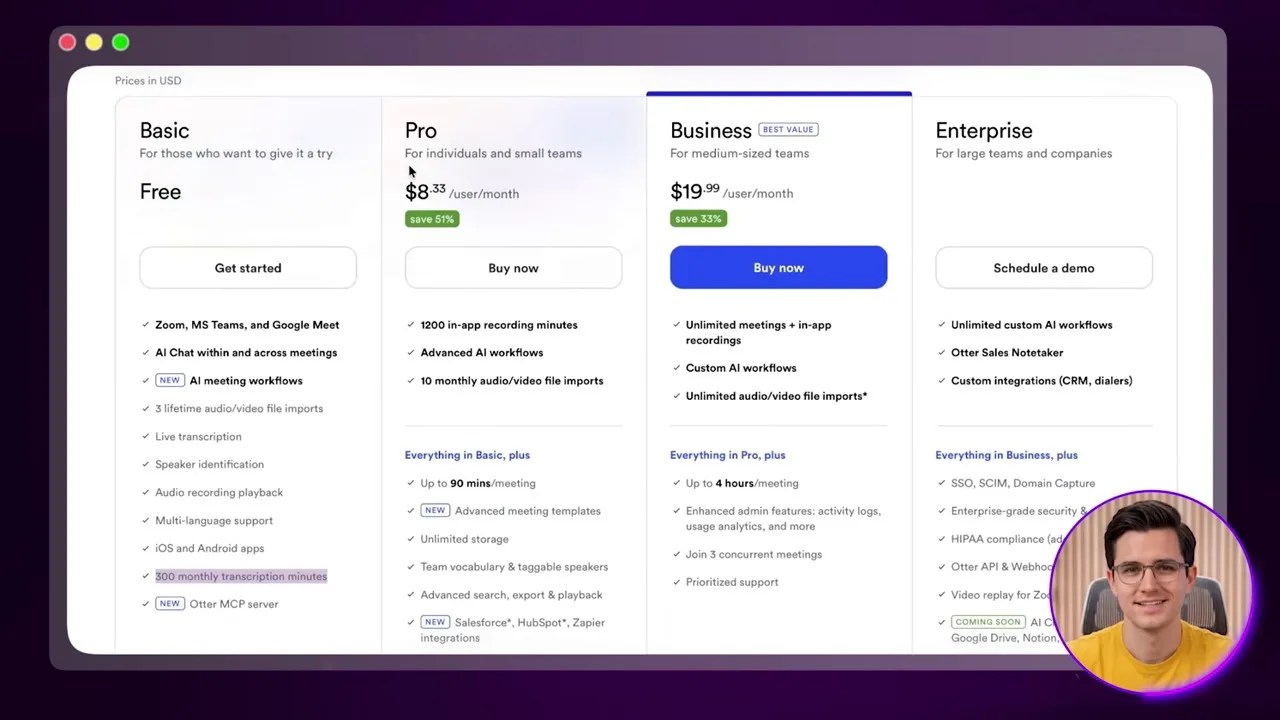
Otter AI’s real-time transcription identifies speakers and instantly builds action-oriented summaries, saving hours of post-meeting write-ups.
As you can see from the interface, the app handles the heavy lifting of meeting organization. The real magic isn’t even the raw transcript; it’s that auto-generated summary. Instead of spending 10 minutes drafting a follow-up email, I simply copy Otter’s summary, tweak it slightly, and blast it to my team in under 30 seconds.
👍 What I Love
- Flawless integration with Zoom, Teams, and Google Meet.
- The post-meeting summaries are remarkably accurate and structured.
- Saves hours of tedious documentation.
👎 The Catch
- The free tier has a strict 30-minute limit per meeting (300 minutes total per month).
- Requires a Pro subscription ($8.33/mo) if your meetings run long.
2. Perplexity: Replaces Google Search Entirely
I didn’t think any app would ever replace Google Search on my phone, but Perplexity did it in less than a month. Traditional search has become a miserable experience of dodging ads, ignoring SEO-optimized spam, and clicking through ten different blue links just to find a simple answer.
Perplexity approaches search differently. It acts as a conversational research engine. You ask a question, and instead of giving you links, it reads the web in real time, synthesizes a direct answer, and attaches clear, clickable citations to every single claim it makes.
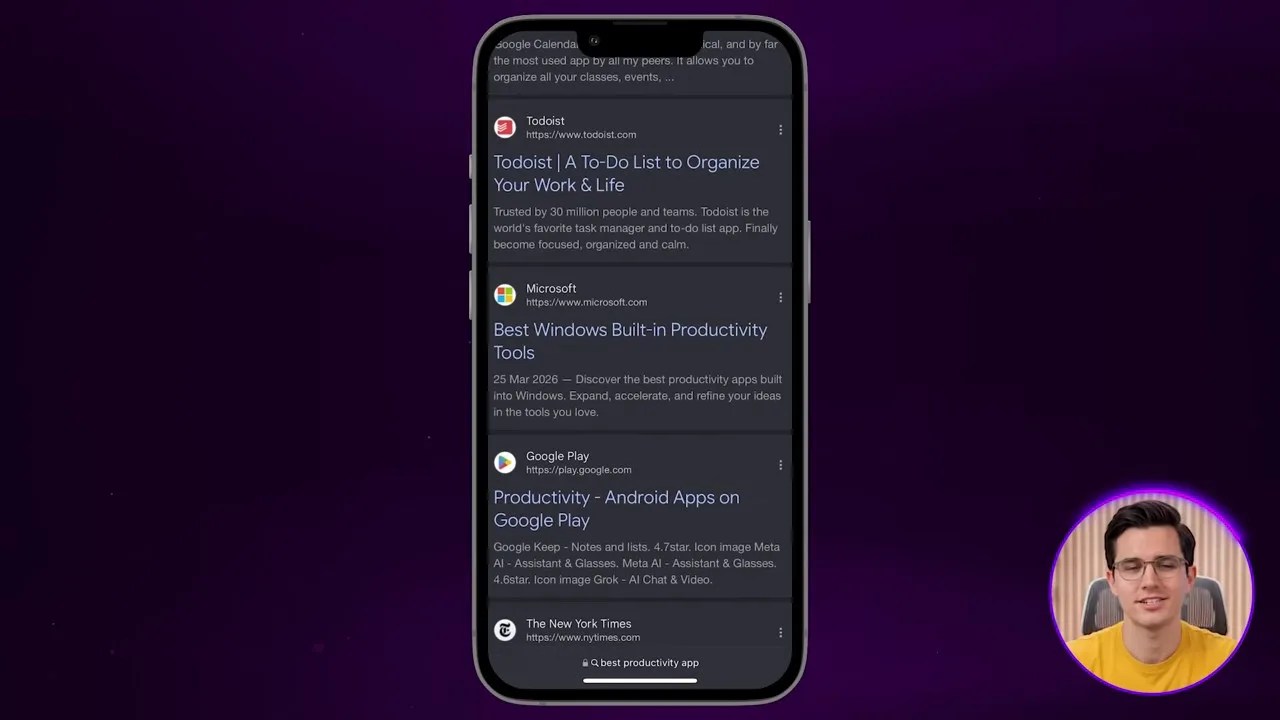
Perplexity bypasses the traditional list of blue links, giving you direct, cited answers with real-time web data on mobile.
This UI is a massive step forward for mobile research. If I need to compare two products, check a fast-moving news story, or verify a sketchy claim I saw on social media, Perplexity gives me the ground truth with sources I can verify instantly. It’s vastly superior to ChatGPT for information gathering because it actively fights hallucination by anchoring its responses in live web data.
👍 What I Love
- Real-time web access with clear citations.
- No ad-heavy search results to sift through.
- Pro mode ($17/mo) offers access to top-tier models like Claude 3.5 Sonnet and GPT-4o.
👎 The Catch
- Occasional slow response times when pulling from highly complex sources.
- The free tier is great, but advanced features are locked behind a premium paywall.
3. Grammarly Keyboard: Frictionless, System-Wide Writing Help
Most writing assistants require you to copy your text, leave your current app, open a chatbot, paste it, ask for edits, copy the result, and paste it back. It’s a clunky, frustrating workflow that ruins the speed of mobile communication. Grammarly solves this by living inside your system keyboard.
Once you enable the Grammarly keyboard in your phone’s settings, it works inside every single app you use—Slack, Gmail, Messages, Figma, Safari, or Google Docs. It operates silently in the background, catching typos, suggesting better phrasing, and adjusting your tone on the fly.
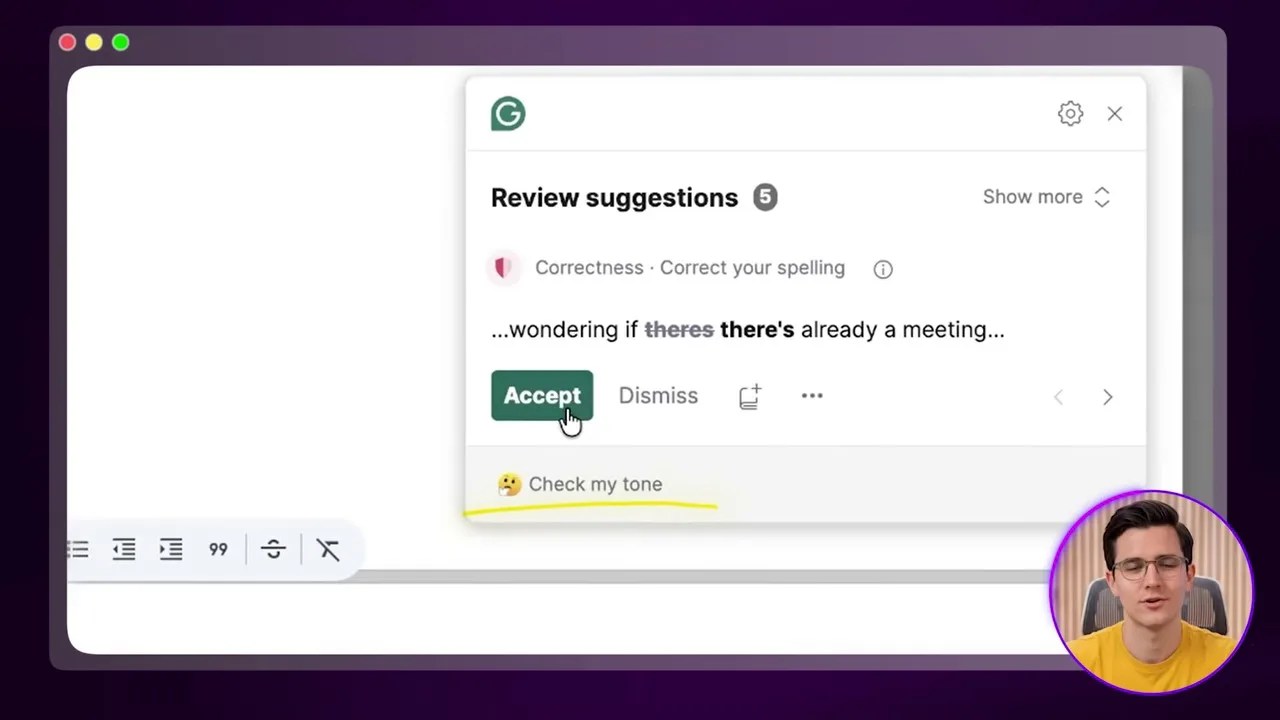
Operating directly inside your native text fields, the Grammarly keyboard fixes tone and grammar without forcing you to copy-paste into an external app.
Using this feels like driving a car with subtle, perfect lane-assist. You don’t realize how much it’s doing until you type on someone else’s phone and suddenly feel the jarring bumps of typos and awkward phrasing. The free version easily handles basic grammar and spelling, while the Pro tier unlocks deeper tone adjustments and full-sentence rewrites with a single tap.
👍 What I Love
- Zero copy-pasting required; works system-wide.
- Tone adjustment suggestions are incredibly helpful for professional emails.
- Lightweight and doesn’t lag your typing speed.
👎 The Catch
- You have to use their custom keyboard layout, which might take some getting used to.
- Advanced stylistic rewrites require the paid subscription.
4. Eleven Reader: Turn Your Commute into an Audio Library
We all have a massive backlog of articles, PDFs, and newsletters we’ve saved but never actually read. Eleven Reader (developed by ElevenLabs) turns that pile of guilt into a highly productive audio experience. It is easily the best text-to-speech app on the market today.
Unlike the default text-to-speech features on iOS or Android—which sound like a depressed robot reading a spreadsheet—Eleven Reader uses state-of-the-art voice synthesis. It features over 1,000 highly natural voices across 32 languages. The voices have realistic inflections, breathing pauses, and emotional pacing that make long-form content genuinely enjoyable to listen to for hours.
I use it to listen to long research papers, industry newsletters, and saved web articles during my morning walks. It supports offline listening, meaning you can pre-load documents for flights, and features a clean text-highlighting interface that syncs with the audio if you want to read along.
👍 What I Love
- The most realistic, human-sounding AI voices available.
- Completely free to start with an incredibly generous voice library.
- Supports offline listening and multiple file formats (PDF, EPUB, TXT).
👎 The Catch
- Extremely large files can sometimes take a minute to process and generate.
- No direct integration with read-it-later apps like Pocket or Instapaper yet.
5. NotebookLM: The Ultimate Cheat Code for Complex Documents
Google’s NotebookLM is arguably one of the most innovative AI products released recently. It completely changes how we interact with information. Instead of querying a general AI model that pulls from the entire internet, NotebookLM lets you upload your own source documents—PDFs, Google Docs, YouTube links, or websites—and creates a private, highly secure AI that only knows the information you gave it.
You can chat with your documents, ask for summaries, or cross-reference complex data points. But the feature that took the internet by storm is the Audio Overview. With a single click, NotebookLM generates a highly realistic, banter-filled podcast where two AI hosts discuss, debate, and summarize the key insights of your uploaded documents.
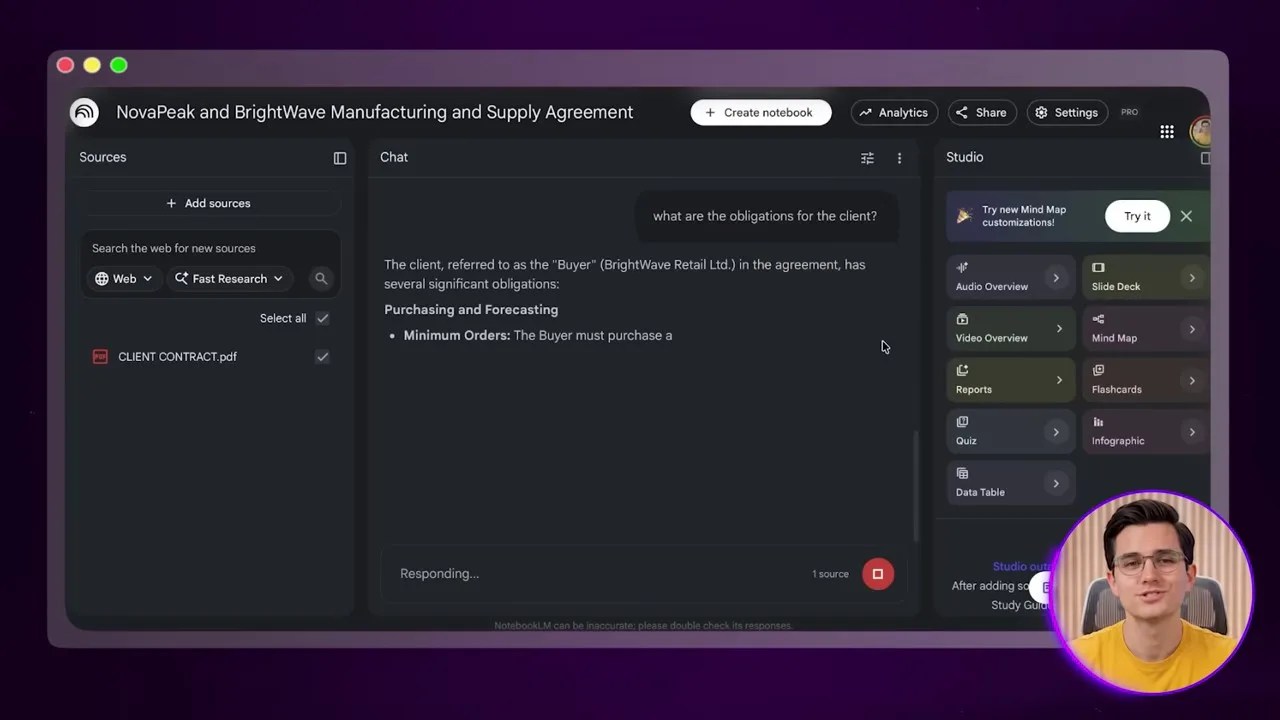
Google’s NotebookLM transforms dry PDFs and documents into a lively, highly engaging podcast-style audio conversation between two AI hosts.
I recently uploaded a dry, 50-page corporate strategy document into NotebookLM. Instead of spending an hour reading it, I generated a 20-minute podcast overview and listened to it on my drive to work. I walked into the meeting fully prepared, knowing every key takeaway. It runs beautifully on mobile browsers and dedicated apps, making it an indispensable tool when evaluating the best AI apps for your phone.
👍 What I Love
- Audio Overviews are incredibly engaging and sound shockingly human.
- Zero hallucination because answers are strictly grounded in your uploaded files.
- Entirely free to use with generous upload limits.
👎 The Catch
- You cannot customize the voices or the specific focus of the AI hosts’ conversation yet.
- Processing large batches of files can occasionally take a few minutes.
6. CapCut: Desktop-Grade AI Video Editing in Your Pocket
Mobile video editing used to be a painful exercise in precision tapping and transferring massive files to a desktop. CapCut has single-handedly changed that narrative by embedding incredibly powerful AI tools directly into its mobile workflow.
It includes features like one-tap background removal, AI voice enhancement (which cleans up background noise flawlessly), and highly accurate auto captions that are ready for social media publishing without manual editing.
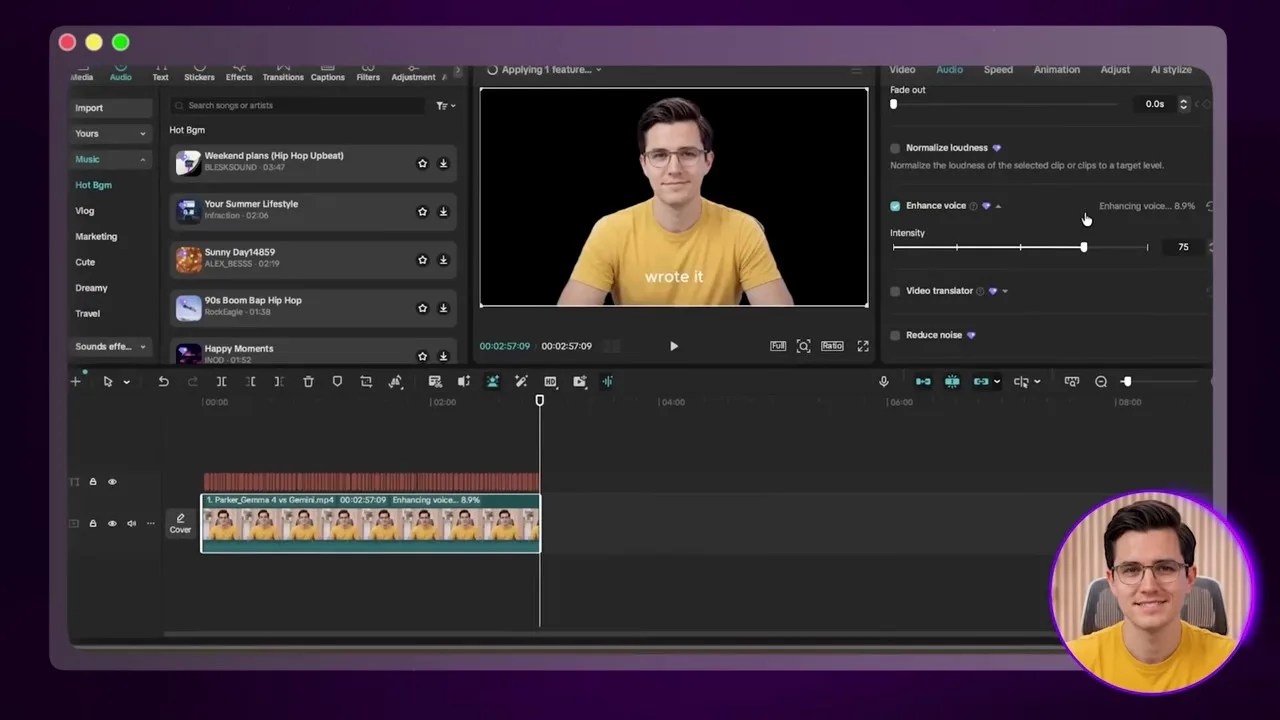
CapCut’s mobile editor utilizes AI to automate tedious tasks like cutting out dead space, removing backgrounds, and styling captions instantly.
My absolute favorite feature is “Smart Cuts.” It automatically scans your raw footage, identifies silent pauses, dead air, and filler words, and cuts them out instantly. This feature alone saves me at least 10 to 15 minutes of tedious timeline scrubbing per video. I can now shoot, edit, polish, and export a short-form video entirely on my phone in about 15 minutes—a process that used to take 45 minutes on my laptop.
👍 What I Love
- Smart Cuts and Auto Captions save massive amounts of time.
- AI background removal is remarkably clean, even without a green screen.
- The free version has no watermarks on exports and includes 1GB of cloud storage.
👎 The Catch
- The advanced AI features and premium assets require a Pro subscription.
- Rendering highly complex, effect-heavy videos can drain your phone’s battery quickly.
7. Gemini Live: A Voice Assistant You Can Actually Talk To
Let’s face it: traditional voice assistants like Siri and the classic Google Assistant are incredibly frustrating. They require rigid commands, fail if you hesitate, and can’t handle basic context switching. Gemini Live is the first voice assistant that actually feels like talking to a real human being.
Gemini Live allows for natural, conversational flow. You can interrupt it mid-sentence, throw in a random tangent, pause to gather your thoughts, or completely shift topics, and it will keep up without missing a beat. There is zero awkward waiting for the AI to finish its pre-programmed response before you can speak again.
On Android, Gemini integrates deeply at the system level, allowing it to read what is on your screen and interact natively with other Google apps. While the iOS version lacks this deep system integration, the standalone Gemini app still offers the full, natural conversational experience. I use it constantly to talk through complex creative ideas while walking or to plan my daily schedule hands-free in the morning.
👍 What I Love
- Truly conversational—accepts interruptions and natural speech patterns.
- Deep system integration on Android devices.
- Excellent for brainstorming and verbal problem-solving on the go.
👎 The Catch
- iOS users miss out on deep system-level actions.
- Occasionally suffers from slight latency depending on your cellular connection.
The Ultimate Cheat Sheet: Comparing the Best AI Apps for Your Phone
To help you decide which of these tools deserve a spot on your home screen, here is a quick, transparent breakdown of their core use cases and pricing structures:
| App Name | Primary Use Case | Free Tier Limits | Paid Tier Pricing |
|---|---|---|---|
| Otter.ai | Real-time meeting transcription & action summaries | 300 mins/month (30-min cap per call) | Pro: $8.33/mo (1,200 mins, 90-min cap) |
| Perplexity | Conversational web search with real-time citations | Standard search (highly capable) | Pro: $17/mo (Advanced models & deep search) |
| Grammarly Keyboard | System-wide real-time writing correction | Basic grammar, spelling, & punctuation | Pro: Premium style, tone, & rewrite suggestions |
| Eleven Reader | Ultra-realistic text-to-speech narration | Generous access to 1,000+ voices | Free to use; premium tiers for API/commercial use |
| NotebookLM | Document analysis & podcast-style audio summaries | Fully Free (with generous upload limits) | N/A (Completely free tool) |
| CapCut | AI-assisted mobile video editing & captions | Basic editing, 1GB cloud, auto-captions | Pro: Premium effects, advanced AI, more storage |
| Gemini Live | Natural, conversational voice assistant | Fully Free on iOS & Android | Included in Google One AI Premium for advanced models |
At the end of the day, finding the best AI apps for your phone isn’t about collecting icons on your screen; it’s about identifying your personal friction points. If you write constantly, download Grammarly. If you are drowning in meetings, set up Otter. If you hate reading dry documents, let NotebookLM talk you through them. Pick one or two, build them into your routine, and watch your daily productivity skyrocket.
Frequently Asked Questions
1. Do these AI apps drain my phone’s battery quickly?
Apps that process data locally or render video (like CapCut) will naturally consume more battery. However, apps like Perplexity, Otter, and NotebookLM handle the heavy computational lifting in the cloud, meaning they won’t drain your battery any faster than standard web browsing.
2. Is my data safe when uploading sensitive documents to NotebookLM or Otter?
Google states that your personal uploads to NotebookLM are kept private and are not used to train their public models. Otter also employs industry-standard encryption, but as a general rule of thumb, always review your company’s data privacy policies before uploading highly confidential corporate data to any third-party cloud service.
3. Can I use Gemini Live on an iPhone?